Why a real Microsoft sign-in page can still be part of a scam
A colleague sends a supposed shared document. The instructions ask you to visit a genuine Microsoft page and enter a code. The address looks right, so you proceed.
There is another question to ask: whose sign-in request are you completing? In device-code phishing, the page can be genuine while the request belongs to an attacker.
This guide explains the distinction using two fictional journeys. It builds on checking app permissions by looking specifically at the device or application you are authorising.
What a device code does
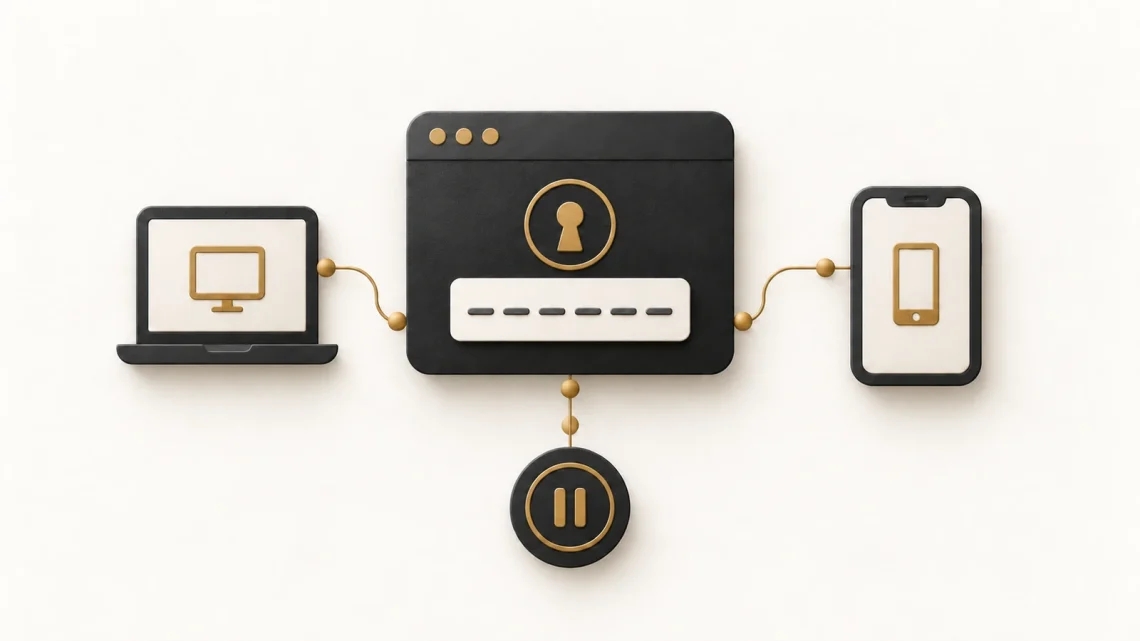
A legitimate device-code flow lets a device or application that cannot easily handle an interactive login ask you to complete authentication elsewhere. Microsoft’s documentation describes an application displaying a code and directing the user to a verification page on another device.
The code connects the sign-in you complete to the application’s waiting request. Entering it is therefore part of authorising access, rather than a neutral step to reveal a document.
Microsoft Learn: legitimate authentication flows
How the same process can be misused
In May 2026, the FBI warned that Kali365 phishing kits were using genuine Microsoft verification pages. An attacker sends a device code and a convincing reason to enter it. Completing the sign-in gives the attacker tokens that can be used to access Microsoft 365 services.
A token is a credential representing authorised access. The attacker may obtain this access without collecting your password. The problem is the request you authorised, not necessarily the website address.
FBI: Kali365 device-code phishing warning, 21 May 2026
Compare two fictional journeys
A sign-in you deliberately started
You are setting up an approved device with help from your IT team. The device displays a code as part of that process. You follow the documented sign-in route, check the application information presented and complete the request you initiated.
The important evidence is the connection between the intended setup and the authentication request. Genuine branding alone would not establish that connection.
An unexpected document message
A message claims that a planning document requires verification. It supplies a code and tells you to enter it on a genuine Microsoft page. You were expecting a file, not setting up a device or authorising a separate application.
Pause and verify through a known contact route. Do not enter the code merely to find out what happens. This scenario is invented and contains no working code or login link.
Ask about the request, not just the page
Three questions before you continue
If you cannot answer these questions, leave the request and ask your organisation’s support team. If someone claims urgency, that does not supply the missing connection between the code and your intended task.
- Did I initiate the device or application sign-in?
- Do I understand what will receive access after I complete it?
- Can I verify the request independently of this message?
Multi-factor authentication still matters
Multi-factor authentication, or MFA, adds identity checks at sign-in. It remains useful. Device-code phishing illustrates a different failure: you can successfully prove your identity while completing a request controlled by someone else. The FBI warning describes access that does not require the attacker to steal the password.
FBI: Kali365 device-code phishing warning, 21 May 2026
For people choosing workplace controls
Microsoft supports policies that restrict device-code authentication. Its guidance recommends blocking the flow where possible, with careful attention to legitimate uses. Administrators should assess dependencies before changing organisational policy.
A learning article is a prompt to discuss the control with your identity team. It is not a reason for an individual reader to change workplace sign-in policies on their own.
If you already completed an unexpected request
Tell your IT or security team promptly. Explain the message, the approximate time and the application or device information you saw. Say whether you completed the sign-in. Ask them to investigate and revoke unauthorised access as appropriate.
For a personal account, use the provider’s genuine recovery guidance and check for unexpected activity. The UK NCSC’s recovery steps include reviewing account settings, changing compromised passwords and signing other devices and apps out. A password change should not be your only recovery check.
UK NCSC: recovering a hacked account
Try a two-minute team exercise
Read the two journeys aloud
Ask colleagues to identify where each sign-in request originated, what access was intended and which detail would require independent verification. Focus on the sequence rather than guessing from a logo.
Finish by saving the trusted route for reporting a suspicious sign-in request. The useful outcome is knowing who to contact before you enter an unexpected code.
Sources and reading: Checked 14 October 2026. The scenarios and exercises in this article are fictional.


You May Also Like

6 AI prompts to make everyday tech tasks clearer
You pushed an API key to GitHub. What should you do next?